Zoho Creator + Google Vision OCR: verify every vendor payment and automate GRN entry
A Friday afternoon that goes wrong
The story below is an illustrative example built from common situations. The business, people and figures are made up.
It's 4 pm on a Friday at a mid-sized distributor. The accounts executive is clearing vendor payments before the weekend. One supplier sent an email on Wednesday: "We've changed banks, please use our new account for this invoice." It looks like their usual email. The logo is right and the invoice number is right. She updates the account and sends the payment.
On Monday the real supplier calls. They never changed banks. The email came from a look-alike domain, and the money has gone.
The same week, the store team receives 480 cartons against a purchase order for 500. The delivery note is filed in a drawer, the GRN is typed in on Tuesday as "500" because that's what the PO says, and the full invoice is paid. Twenty cartons are paid for and never received. Nobody notices until stock-taking.
Neither mistake needed a fraud team or an expensive ERP to prevent it. Both started with a piece of paper or a screenshot that nobody checked against the system. That's exactly what OCR in Zoho can do automatically.
Why payments and receiving are where money leaks
These aren't rare problems:
- In the 2025 AFP Payments Fraud and Control Survey, 79% of organisations were targeted by payment fraud in 2024. 63% experienced business email compromise, and 45% reported vendor impersonation, up from 34% the year before.
- The FBI's 2024 Internet Crime Report recorded 21,442 business email compromise complaints with close to $2.8 billion in losses. That's the second-highest loss of any crime type.
- On the receiving side, every GRN typed by hand is a chance to record the PO quantity rather than the delivered quantity. Every wrong GRN flows into stock levels, bills and payments.
The usual advice is "train your staff" and "double-check." That works until the busy day when it doesn't. A control that runs on every single payment and every single delivery is more reliable than one that depends on someone remembering.
Why Google Vision OCR with Zoho Creator
We build the whole system as custom Zoho Creator apps: vendor master, purchase orders, GRNs, bills and payments all live in Creator, shaped around how the business actually works. For the reading step, we call the Google Cloud Vision API from Deluge.
| What we need | How Google Vision handles it |
|---|---|
| Dense text on slips and delivery notes | DOCUMENT_TEXT_DETECTION is built for dense text and documents, and returns pages, blocks, paragraphs and words |
| Handwritten quantities on delivery notes | Document text detection supports handwriting |
| Bank PDFs | PDF and TIFF files are supported; each page counts as one image |
| Low running cost | First 1,000 units a month free, then $1.50 per 1,000 units (up to 5 million a month) |
| Fits any Creator app | A simple REST call from Deluge with invokeUrl; the text comes back as JSON |
Zoho also has its own OCR (the Creator OCR field, custom OCR models and the Deluge zoho.ai.recognizeText task), and those are good options too. We chose Google Vision because it handles mixed printed and handwritten documents well, works the same way across every custom app we build, and costs little at small-business volumes. For most businesses, a few hundred slips and delivery notes a month fit inside the free tier.
The important part isn't the OCR engine. It's the rules that compare what the document says with what your system says. That's where the money is saved.
Part 1: payment slip verification
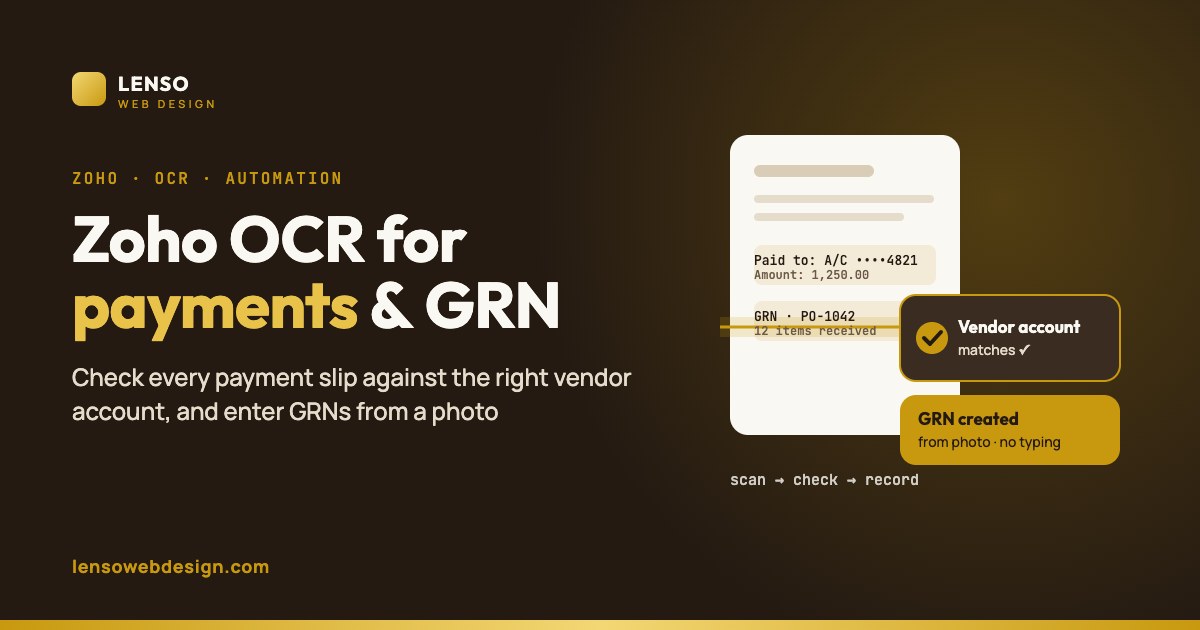
The goal is simple: no payment is marked "done" until the slip proves the money went to the approved account, for the right amount.
Step 1: keep one approved bank account per vendor
The check is only as strong as the reference data. Each vendor has an approved bank account record: account number, bank code (routing number, sort code, IBAN/SWIFT or IFSC, depending on the country), account name, the date it became active and who approved it. Changing it needs approval from a second person and a call-back to a phone number already on file, never one taken from the email asking for the change.
Step 2: upload the slip against the bill
After paying, accounts staff upload the bank's payment confirmation (a PDF, screenshot or photo) to the payment record in the Creator app. It takes seconds and replaces the "save it somewhere" habit.
Step 3: OCR reads the slip
The OCR model pulls out the fields that matter:
- Beneficiary account number and bank code
- Beneficiary name
- Amount and currency
- Payment date
- Transaction or reference number
Step 4: Deluge runs the checks
| Check | Rule | If it fails |
|---|---|---|
| Account number | Must exactly match the vendor's approved account (digits only, spaces removed) | Mismatch: alert the owner at once |
| Bank code | Must match the approved routing number, sort code, IBAN or IFSC | Mismatch: alert |
| Amount | Must equal the bill amount (or the agreed part-payment) | Review: flag the difference |
| Reference number | Must not already exist on another payment | Review: possible duplicate upload or double payment |
| Beneficiary name | Similar to the vendor name (names vary, so this is a soft check) | Review |
| Readability | All key fields found with confidence | Needs manual entry: never guessed |
Step 5: one clear status and an alert
Every payment ends up Verified, Needs review or Mismatch. Mismatches go straight to the owner by email, Zoho Cliq or a push notification on their phone. The owner gets a daily list instead of having to trust that everything was fine.
Why match on numbers, not names? Names are printed differently on every bank slip ("ABC Traders", "A.B.C. TRADERS PVT", "ABC TRADING"). Account numbers and bank codes don't change, so they're the reliable test. Names are a supporting signal only.
We build payment slip verification and automated GRN entry as custom Zoho Creator apps with Google Vision OCR, and fit them around how your team already works.
Talk to us about Zoho OCRPart 2: GRN entry straight from OCR
A GRN records what actually arrived from a supplier. In our custom Creator apps it's a GRN record linked to the purchase order, with support for partial deliveries, damaged items and stock updates. The weak point in most businesses is the person typing it in. OCR removes that step.
How the store team uses it
- Snap: when goods arrive, the storekeeper opens the GRN form on a phone and photographs the delivery note or supplier invoice.
- Read: OCR pulls out the supplier, the document number, the PO number, and each line's item code and quantity.
- Match: Deluge finds the open purchase order and lines up each item. Items not on the PO are flagged.
- Count: the form shows "PO quantity" next to "delivery note quantity". The storekeeper enters the physically counted quantity, plus any damaged or rejected units.
- Save: the app creates the GRN against the purchase order and updates stock. Short, extra and damaged items are recorded as exceptions.
The storekeeper still counts the goods. OCR removes the typing and the "just copy the PO" shortcut, because the delivery note and the physical count are both on record.
Handling real-world deliveries
- Partial deliveries: receive what arrived. The PO stays open for the rest.
- Damaged or rejected goods: recorded separately, so they're never billed or paid for.
- Item names that don't match: keep a supplier-to-item mapping table, so "BRG-6204-ZZ" on the supplier's note maps to your item code.
- Serial and batch numbers: captured on the same GRN when the item needs tracking.
Putting it together: the three-way match
Accountants call this the three-way match: compare the purchase order, the goods received note and the supplier invoice before you pay. When the GRN comes from the actual delivery note and physical count, and the payment slip is checked against the approved account, you get a fourth check on top:
| Document | Question it answers | Source in the app |
|---|---|---|
| Purchase order | What did we agree to buy, at what price? | Creator purchase order |
| GRN | What actually arrived? | OCR of the delivery note + physical count |
| Supplier invoice (bill) | What are they charging? | Creator bill record (OCR or entry) |
| Payment slip | Where did the money actually go? | OCR of the bank confirmation |
The bill is approved only when PO, GRN and invoice agree. The payment is closed only when the slip matches the approved account and amount. That's a full purchase-to-pay control loop inside one Zoho Creator system.
How the app is built in Zoho
The data model
| Form / module | Key fields |
|---|---|
| Vendor bank accounts | Vendor, account number, bank code, account name, status (approved / pending), approved by, effective date |
| Payments | Vendor, bill, amount, date, slip file, OCR fields, verification status, reviewer |
| GRN capture | Delivery note image, PO, supplier, OCR lines, counted quantities, damaged quantities |
| Item mapping | Supplier item code, your item code |
| Exceptions | Type (account mismatch, amount difference, short receipt…), linked record, status, resolved by |
The logic, in simplified form
Below is simplified code to show the flow. The production script also handles errors, PDFs, multiple slip formats and logging.
// On payment slip upload (simplified)
body = Map();
body.put("requests", [{
    "image": {"content": zoho.encryption.base64Encode(slipFile)},
    "features": [{"type": "DOCUMENT_TEXT_DETECTION"}]
}]);
resp = invokeUrl [
    url: "https://vision.googleapis.com/v1/images:annotate"
    type: POST
    parameters: body.toString()
    headers: {"Content-Type": "application/json"}
    connection: "google_vision"          // key or OAuth kept in a connection, never in the form
];
text     = resp.get("responses").get(0).get("fullTextAnnotation").get("text");
acct     = extractAccount(text);          // your own parsing helper
amount   = extractAmount(text);
approved = Vendor_Bank_Accounts[Vendor == input.Vendor && Status == "Approved"];

if (acct == "" || amount == null) {
    input.Verification = "Needs manual entry";
} else if (acct != approved.Account_Number) {
    input.Verification = "Mismatch";      // create Exception record + alert owner
} else if (amount != input.Bill_Amount) {
    input.Verification = "Needs review";
} else {
    input.Verification = "Verified";
}
For GRNs, the same OCR call reads the delivery note. The script maps each line to a purchase order line (using the supplier item mapping), shows it to the storekeeper to confirm the counted quantities, then creates the GRN and updates stock.
Getting OCR accuracy right
- Use document text detection. Google's
DOCUMENT_TEXT_DETECTIONis built for dense documents and handwriting, so it suits slips and delivery notes better than plain text detection. - Write parsing rules per format. Each bank's slip and each major supplier's delivery note has its own layout. Keep a small set of patterns for each, so the right numbers are picked out every time.
- Prefer the bank's PDF over a photo. A downloaded confirmation gives cleaner text than a photo of a screen.
- Photo rules for the store: flat page, good light, whole page in frame, no shadows.
- Never guess. If a key field isn't found, the record goes to "Needs manual entry". A false "Verified" is worse than no check at all.
- Keep a person in the loop. OCR is very good but not perfect. A person confirms before anything is paid or stocked.
- Watch usage. Each image or PDF page is one Vision unit. Run OCR once per upload, not on every edit, and most small businesses stay within the free 1,000 units a month.
Security and audit trail
- Mask account numbers in lists and reports, showing only the last four digits to most users.
- Role-based access: store staff can create GRNs but can't see bank details. Only the owner or finance head can approve bank account changes.
- Keep the original file attached to every payment and GRN for auditors.
- Log every change to vendor bank details with who, when and the call-back confirmation.
- Protect the Google key. Store it in a Creator connection, restrict it to the Vision API, and never put it in a form, page or public file.
- Separate duties: the person who changes vendor bank details shouldn't be the one who releases payments.
Rollout plan
- Clean the vendor master. Confirm every active vendor's bank details through a trusted channel and mark them approved.
- Start with payment slips. It's the highest-risk area and the quickest win.
- Collect samples. Gather five or more examples of each common slip and delivery note to build and test the parsing rules.
- Run in parallel for a few weeks: OCR checks alongside the current process, so you can tune the rules.
- Add GRN capture for your top suppliers first, then expand.
- Switch on alerts and the owner's daily summary.
Is it worth it for your business?
Work it out with your own numbers:
- Time: GRNs per month × minutes to type each one × staff cost per hour.
- Errors: how often a GRN or payment had to be corrected last year, and what each correction cost.
- Risk: your largest single vendor payment. One wrong-account payment of that size is the cost of having no check.
It suits businesses that pay many suppliers and receive goods regularly: distributors, wholesalers, manufacturers, retailers with a warehouse, construction and project companies.
Frequently asked questions
Which OCR do you use with Zoho Creator?
We use the Google Cloud Vision API, called from Deluge in custom Zoho Creator apps. Its document text detection reads dense printed text and handwriting, and the first 1,000 units each month are free. Zoho's own OCR field and the zoho.ai.recognizeText task are alternatives.
Can Zoho check if a payment went to the right vendor account?
Yes, with a custom Creator app. OCR reads the account number, bank code and amount from the payment slip, and Deluge compares them with the vendor's approved bank details and the bill. Mismatches are flagged and the owner is alerted.
Can GRN entries be automated in Zoho Creator?
Yes. The storekeeper photographs the delivery note, OCR reads the items and quantities, the app matches them to the purchase order, and the storekeeper confirms the counted quantities before the GRN is saved and stock updates.
Can OCR read handwritten delivery notes?
Google Vision's document text detection supports handwriting. Printed documents are more reliable, so handwritten notes should get a quick human check.
How much does Google Vision OCR cost?
Text detection and document text detection are free for the first 1,000 units a month, then $1.50 per 1,000 units up to 5 million. Each image, or each page of a PDF, is one unit.
What is a three-way match?
Comparing the purchase order, the goods received note and the supplier invoice before paying. Adding a payment slip check makes it a four-way control that also confirms where the money went.
Will this replace my accounts or store team?
No. It removes typing and routine checks, so your team handles the exceptions that need judgement.
Related
- Case study: a manufacturer's purchase-to-pay in Zoho Creator
- Free push notifications for Zoho ERP with Firebase
- Zoho and WhatsApp business automation
- Five signs your business needs Zoho automation
Sources
- Zoho Creator: Understand the OCR field
- Zoho Creator: Understand the OCR model
- Zoho Deluge: Recognize Text task
- Google Cloud Vision: Detect text (OCR)
- Google Cloud Vision: Detect text in PDF and TIFF files
- Google Cloud Vision pricing
- 2025 AFP Payments Fraud and Control Survey: key highlights
- Nacha: FBI IC3 business email compromise losses
- Tipalti: What is a 3-way match?
Zoho and Google Cloud features, limits and prices change over time. Check the current documentation before you build. Fraud figures are from the cited reports and vary by country and industry.